What ‘overlay’ actually means here
The word is doing two jobs at once, which is why searching for it is confusing. Most people who type it mean something spatial: this thing, on top of that picture, over here, about that big. A smaller group mean the arithmetic — Multiply, Screen, Soft light — that decides how two sets of pixels combine. This page is built for the first meaning and hands you the second as a control once the thing is down.
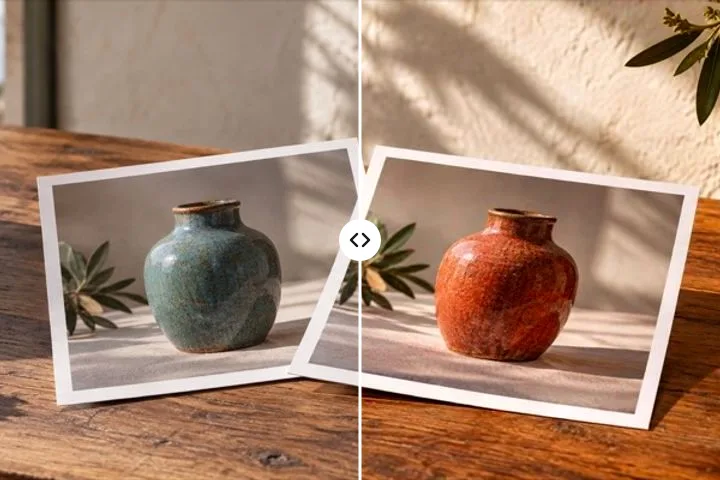
What separates the two is edges. Everything you put down here keeps its own outline: a box you can drag, corners you can pull, an angle of its own, and its own setting for how much of it shows through. It is a discrete thing sitting on a photograph, and it can be moved back off again. That is different from two pictures being stirred together until neither has a border any more.
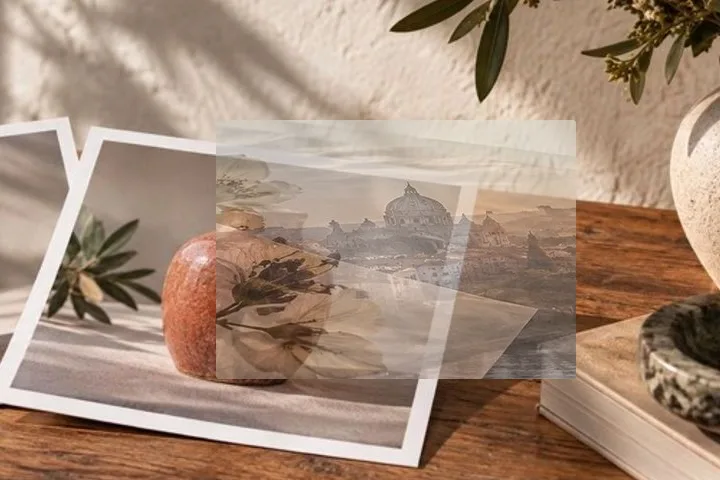
Two other jobs are worth naming so you do not spend ten minutes in the wrong place. A double exposure is the edge of what happens here: a second photo laid over the first on Screen with a fade or a round mask still has a place, a size and an edge you set, so it belongs on this stage. Butting pictures together side by side, or stitching them edge to edge, is a different operation and not this one. If the same small mark has to go onto a whole folder, the logo-on-multiple-photos page places it on every file by one rule and checks each photo underneath. A pattern repeated across the whole frame so a crop cannot lose it is not here yet. What this stage is for is the few things you want people to notice.
Placing something, step by step
- Open the photo that goes underneath. Drag it onto the page, paste it straight from the clipboard, or put the keyboard on the drop zone and press Enter. If you have nothing to hand, the sample is drawn on the spot rather than fetched.
- Bring in the thing that goes on top. A PNG with a see-through background is the happiest case, but a second photo, a screenshot or a cut-out all behave the same. A drawn texture — a leak or a grain — is one press instead of a file.
- Move it until it looks right. Drag anywhere inside the box, pull a corner to resize it, and use the round grip above it to turn it. Edges and centres pull gently towards the frame's own edges, middle and thirds.
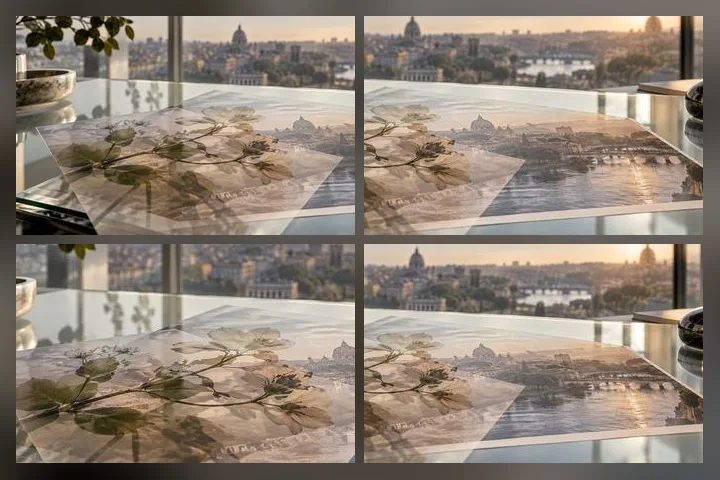
- Decide how much of it you want to see. The rail of sixteen tiles is your photo with your element on it, drawn once per mixing mode, so you can choose by looking rather than by remembering what Screen does. Then set how see-through it is.
- Save the result. The file is drawn again from scratch at the photo's real size — a logo on a 6000-pixel photo is redrawn at 6000 pixels, not enlarged from the preview you approved.
The keyboard route is not an afterthought. Once something is on the photo it becomes a single focus stop: arrows move it a pixel, Shift makes that ten, the square brackets turn it by a degree and by fifteen with Shift, plus and minus resize it a per cent at a time, and the digits set how see-through it is in tens. Every change is read out as a share of the frame — sixty-two per cent across, thirty-one per cent down — because percentages are something you can picture and raw pixels on a photo you cannot see are not.
What you can drop in, and what it will do
- Photo underneath
- JPG, PNG, WebP, AVIF, GIF, BMP and ICO where the browser reads them (TIFF in Safari only), and HEIC from an iPhone through a decoder that is fetched the first time one turns up and never before.
- Thing on top
- The same list. A PNG or a WebP with a see-through background is what this is built around; a flat JPG lands as a rectangle, which is sometimes what you wanted.
- Drawn textures
- Four light leaks and four grains, drawn by arithmetic rather than shipped as files, so they are redrawn at whatever size the finished picture needs.
- Files out
- PNG keeps see-through areas, WebP keeps them and is smaller, JPG is smallest and has none. Quality starts at 92. A kilobyte target lives on the name-and-date route, where exam forms ask for one.
- Sizes
- Up to 120 MB a file. Past about 32 megapixels you are offered a lighter working copy rather than an error — 16 on an iPhone or iPad, where the ceiling is far lower and a failure is silent. Past 100 megapixels, or 40 on those devices, the file is turned away with a reason, because a tab that tries dies quietly.
- Turning
- Free, magnetised to every fifteen degrees within two, and the magnet steps aside while Alt is held.
Six things behave in ways worth knowing before you spend time on them rather than afterwards:
- Twelve overlays at most on one photo. Each one becomes a full-size buffer when the file is drawn, and past a dozen a phone runs out of memory before it runs out of ideas. Save, open the result and keep going if you need more.
- Wide-gamut photos come back calmer. A recent phone tags its pictures with a colour space bigger than the one a canvas composites in, so the most saturated greens and reds clip on the way out. The same goes for a CMYK print file, which is converted to screen colour to be drawn on. Both are named on screen the moment the file opens.
- An animated GIF or WebP gives up its first frame and nothing else. What you save is a still picture, and the page says so as soon as it sees the animation rather than after you have saved it.
- Sixteen bits a channel comes down to eight, and a TIFF (Safari only) gives up its first page. Invisible on a photograph, occasionally visible on a very smooth gradient.
- A see-through photo underneath a mixing mode has nothing to read. Multiply against emptiness looks like an empty frame in half the viewers there are, so the tool offers to flatten those areas onto a colour you choose and tells you it has.
- A vector logo is not read in this release. An SVG has to be rasterised at the size it lands to be worth anything, and that is still ahead of us — export it as a PNG at roughly the size you want and nothing else changes.
Questions people actually ask
- My cut-out has a pale fringe around it. Where is that from?
- It came in with the file. When a subject is cut away from a white studio background, the pixels right at the edge are part subject and part background already, and the cut keeps them — so the halo is baked into the PNG rather than added here. An outline set to a colour from the photo hides it convincingly, and dropping the element a percent or two smaller often loses it altogether. The proper repair is to cut it again against the right background, which is a job for whichever tool made the cut-out.
- Can I put a logo and a light leak on the same photo?
- Yes, in one pass. Every picture or texture you add lands as its own layer in the deck on the left, newest on top. Each keeps its own position, mode, strength and mask, the grip on its card moves it up or down the stack, and one undo history covers all of them. Up to twelve overlays fit on one photo.
- Which mode should a light leak be on?
- Screen, which is where the leaks open. Screen treats black as nothing, so only the bright part of the leak reaches the photo and the dark part of the tile disappears entirely — which is exactly how stray light behaves on film. Grain wants Overlay instead, around thirty-five per cent, because mid-grey is Overlay's nothing and the specks then push the contrast both ways rather than fogging the picture.
- Will a small logo still be sharp if I scale it up?
- A PNG or a JPG has a fixed number of pixels, so enlarging it past its own size softens it here exactly as it would anywhere else. What this page does guarantee is that scaling it down and then exporting does not soften it twice: the element is redrawn from the original file at the size of the finished picture, never enlarged out of the on-screen preview.
- The colours moved a little when I saved. Why?
- Almost certainly a wide-gamut photo from a recent phone. The composite runs in the canvas's own colour space and the saved file is tagged as ordinary screen colour, so the most saturated greens and reds come back a step calmer. A print file in CMYK ink colours does something similar on the way in. Both are named on screen the moment the file opens, because finding out afterwards is worse.
- Can I put a signature on a photo of a document?
- Yes, and it is one of the things this page is genuinely good at. Sign a white sheet, photograph it, cut the signature out as a transparent PNG, then drop it here and set it on Multiply — Multiply keeps the dark ink and drops the white paper, so the signature sits on the document instead of on a rectangle. Size it against the frame rather than in pixels and it lands the same on a scan and on a phone snap.