Reading
What the blend modes actually do to a photograph
Sixteen names, four of them worth learning first. Here is the arithmetic behind each one, said in words rather than symbols, and what it does to a picture you already have.
Open the placing toolBoth files stay on your device — we only draw one on top of the other.
What a mode is choosing between
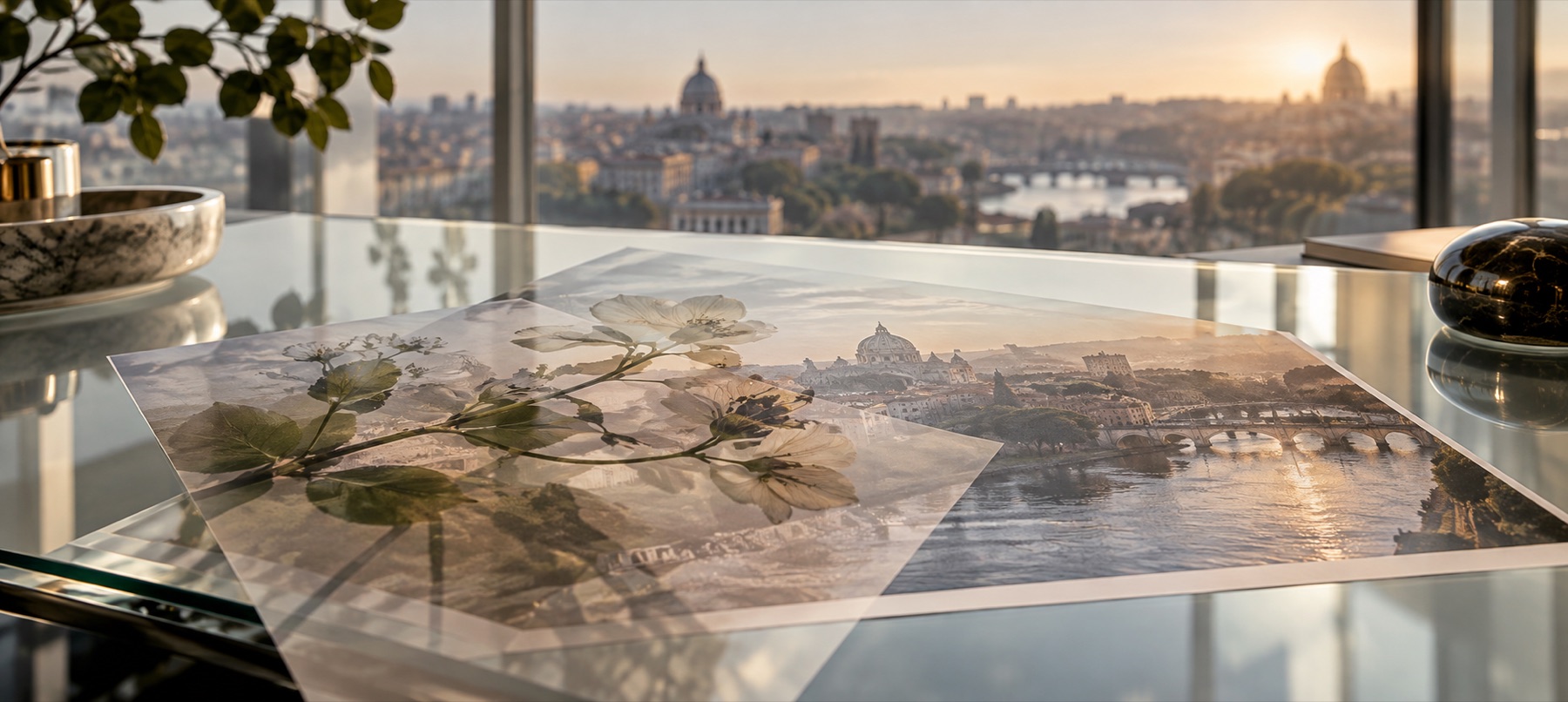
When one picture is drawn on top of another, something has to decide what each pixel comes out as. The default decision is the boring one: the top pixel wins wherever it is not see-through. Every other mode is a different piece of arithmetic run on the pair — the value from the element and the value from the photograph underneath — one colour channel at a time, with each channel treated as a number between nought and one.
That framing is the whole trick to remembering them. Each mode has a value that counts as nothing: feed it that value and the photograph comes through untouched. Multiply's nothing is white. Screen's nothing is black. Overlay and Soft light both treat mid-grey as nothing. Once you know a mode's nothing, you know which kind of element belongs on it, because you know which parts of the element will disappear.
The four that carry almost everything
Multiply — everything gets darker or stays put
Multiply takes the two numbers and multiplies them. Two halves make a quarter; anything times one is itself. Nothing can come out brighter than either input, so the result is always the same or darker. This is what makes it the right mode for dark ink on pale paper: the white of a scanned signature multiplies away to nothing and the ink survives. On a dark photograph it will bury almost anything you put on it.
Screen — everything gets lighter or stays put
Screen is Multiply turned inside out: invert both numbers, multiply them, invert the answer. Black leaves the picture alone and white blows it out. It is the physics of two slide projectors pointed at the same wall, which is exactly why every light-leak texture on this site opens on it — a leak is bright streaks on a black field, and Screen throws the black field away for free.
Overlay — the photograph decides which of the two you get
Overlay looks at the photograph underneath, pixel by pixel. Where the photograph is darker than mid-grey it multiplies; where it is lighter it screens. Shadows deepen, highlights lift, and mid-grey does nothing at all. That last part is why grain arrives on Overlay: film grain is noise scattered either side of mid-grey, so on Overlay it pushes the contrast around without fogging or darkening the picture as a whole.
Soft light — Overlay with the volume down
Soft light does the same job with a gentler curve, so the effect is roughly half as strong and far harder to overdo. If Overlay looks like somebody has been at the contrast slider, this is the one you actually wanted. It is also the safest mode for a texture over a face, where Overlay tends to make skin look like sandpaper.
The other eleven, briefly
- Darken and Lighten
- Keep whichever of the two pixels is darker, or lighter, channel by channel. Blunt, and useful for dropping a light element onto a dark photograph with no softening at all.
- Colour dodge and Colour burn
- Divide rather than multiply. Both blow out fast and both are best kept below about thirty per cent, where dodge gives a convincing lens flare and burn gives a heavy vignette.
- Hard light
- Overlay with the roles swapped: the element decides, not the photograph. Strong, and the one to try when Overlay is not biting.
- Difference and Exclusion
- Subtract one from the other. They produce inverted, poster-ish colour and are mostly a novelty, though Difference is the fastest way to see whether two pictures are identical.
- Hue, Saturation, Colour, Luminosity
- The four that do not work channel by channel. Each borrows one property from the element and the rest from the photograph — Colour is the one that recolours a picture while keeping every scrap of its light, which is why it is the mode behind a convincing tint.
Three things the arithmetic will not do for you
- A mode cannot invent see-through. If your element arrived as a JPG with a white background, Multiply hides the white by darkening — it does not remove it, and on a photograph darker than the element the rectangle comes straight back.
- A mode reads whatever is directly underneath. If the photograph itself has see-through areas, most modes have nothing to read and produce an empty-looking frame in some viewers. The tool offers to flatten those areas onto a colour and tells you when it has.
- Colour that sits outside ordinary screen colour clips. The arithmetic runs in the canvas's own space, so a wide-gamut photograph from a recent phone comes back a step calmer whichever mode you pick.
Questions about modes
- Is there a mode that just makes something see-through?
- That is the opacity control, not a mode. Normal at forty per cent is a straightforward fade; Multiply at a hundred per cent is not a fade at all, even though it often looks like one, because it is darkening the photograph everywhere the element is not white. If what you want is less of the thing, move the opacity. If what you want is the thing interacting with the picture, move the mode.
- Why does my white logo vanish on Multiply?
- Because white is Multiply's nothing. Multiply takes each channel of the element and the photograph, multiplies them as fractions of one, and keeps the result — and anything multiplied by one comes back unchanged, so a white pixel leaves the photograph exactly as it was. A white mark needs Screen, where black is the nothing and white is the maximum.
- Which mode do photographers actually use?
- For textures, Screen and Overlay carry nearly all of it: Screen for anything that is light on black, Overlay for anything that is noise around mid-grey. For marks, Normal with the opacity pulled back, or Multiply on a pale photograph. The remaining eleven are for the cases where those four have already failed, which is roughly one picture in twenty.
Read next
- Place something on a photoThe stage and a deck of layers: logos, stickers, textures or a second photo, each moved until it looks right.
- Where a logo should sitSize against the frame, the corner that survives a crop, and the margin to leave.
- Overlay or watermarkA mark you want read against a mark meant to be ignored, and why the tools differ.