Why this stage opens differently
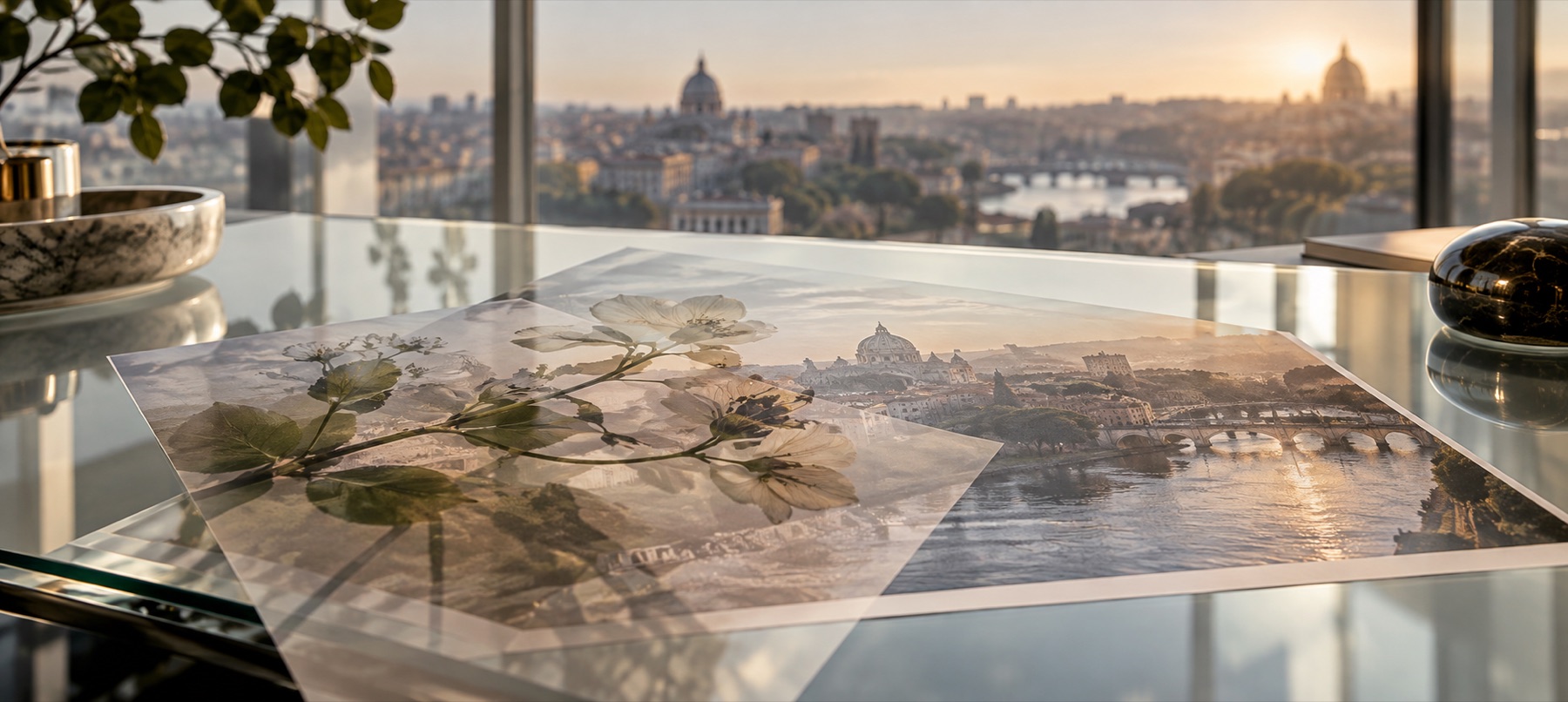
A transparent element should arrive as an object, not as a second full-frame photograph. This preset sizes its long edge to twenty-eight per cent of the base frame and keeps Normal blending at full opacity, preserving the PNG's own alpha channel.
Every starting choice remains visible in the editor. It is a head start, not a locked template: move the element, change its size or rotation, pick another blend operation, add an outline or shadow, and compare the result at the base photograph’s full proportions.
A clean three-pass workflow
- Set the composition. Place and size the upper element before judging colour. Alignment and scale are the decisions that cannot be rescued by a blend mode.
- Choose the interaction. Use Normal when the element should remain itself. Multiply favours dark marks, Screen favours light ones, and Soft light borrows texture and contrast without fully replacing the base.
- Inspect the edge and export. Zoom around high-contrast boundaries, check any transparency fringe on both a light and a dark area, then save in PNG when alpha matters or JPEG when it does not.
What this workflow is built to preserve
- 1
- PNG transparency retained through compositing
- 2
- Centred, restrained opening size
- 3
- Pixel-coordinate placement at full export resolution
- 4
- Outline and shadow available without changing the source PNG
- A white rectangle inside a JPEG is real image data, not transparency this stage can restore.
- Very small PNG files will soften when enlarged beyond their native pixels.
- Animated PNG and GIF input is treated as a still frame.
Questions before export
- Why does my PNG arrive with a white box around it?
- Because the white is in the file. A PNG only has see-through areas if it was saved with them; a logo exported on a white page carries that page. The colour key on the Mask tab knocks one colour out, and Multiply on the Blend tab makes white disappear over a light photo.
- Does the PNG keep its soft edges?
- Yes. The alpha channel is drawn as it is, including half-transparent pixels along an anti-aliased edge, and the saved PNG or WebP keeps it. A JPG has no transparency, so the photo underneath fills those pixels instead.
- Is either file uploaded?
- No. Both are decoded in this tab, drawn onto a canvas here and written straight to your downloads. There is no endpoint on this site that could receive a picture.
- Can I put more than one PNG on the same photo?
- Yes, up to twelve. Each one becomes its own card in the deck with its own place, mode, strength and mask, and one undo history covers all of them.
Related stages
- Add a logo to a photoOpens small, in the corner, inside the margin a crop is least likely to take.
- Put text on a photoA text layer is on the photo when it opens: words, face, size and a backing that keeps them readable.
- Where a logo should sitSize against the frame, the corner that survives a crop, and the margin to leave.
- Place something on a photoThe stage and a deck of layers: logos, stickers, textures or a second photo, each moved until it looks right.