Why this stage opens differently
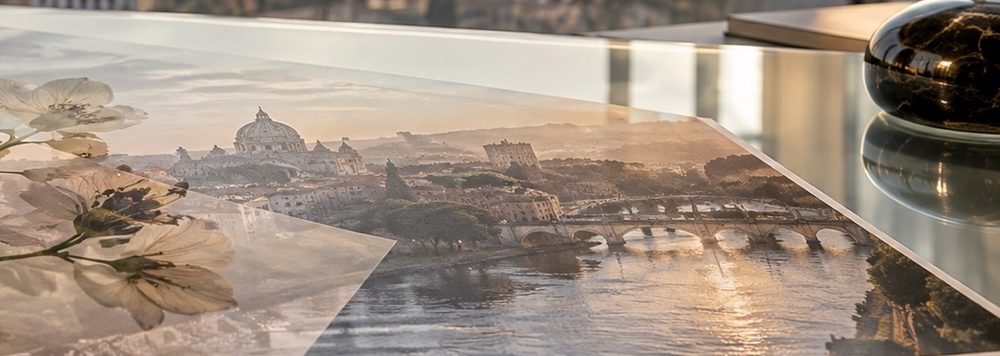
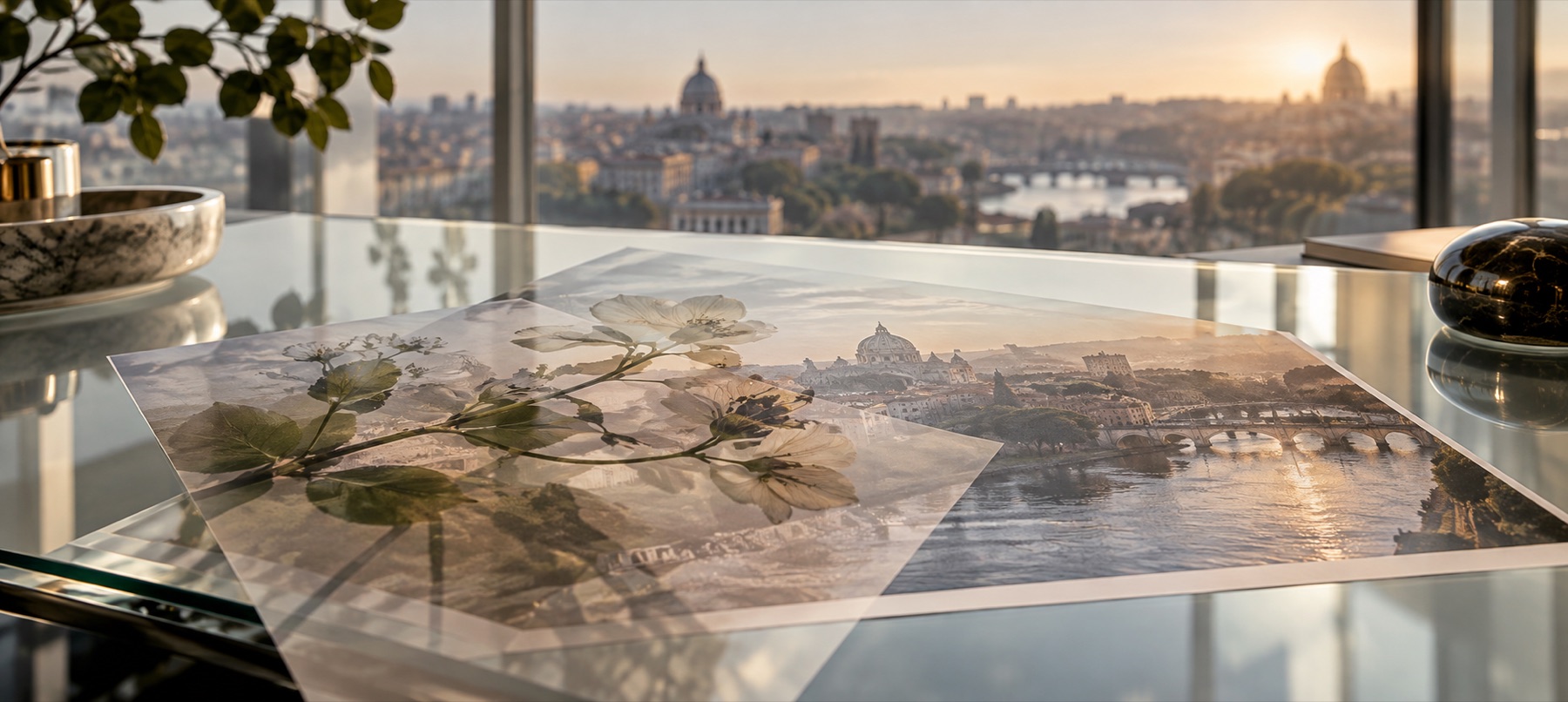
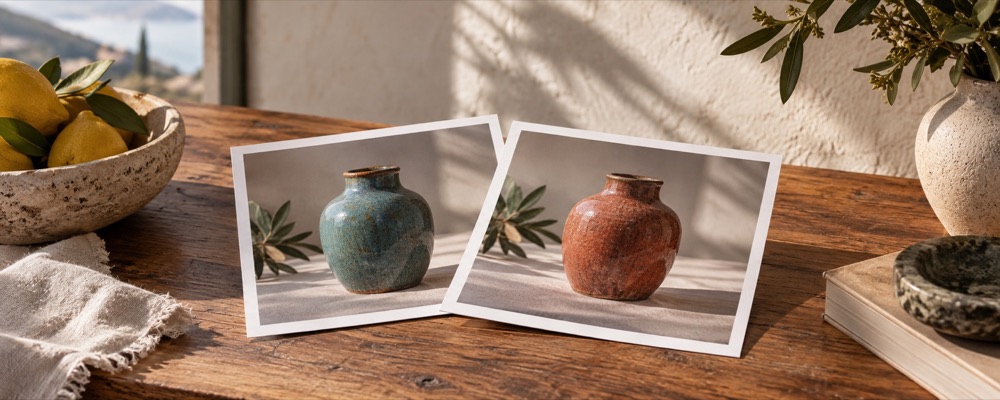
This route opens the texture shelf immediately because the element is not expected to come from a file. The light leaks and grains are drawn again at export resolution, so the grain stays sharp instead of becoming a stretched thumbnail.
Every starting choice remains visible in the editor. It is a head start, not a locked template: move the element, change its size or rotation, pick another blend operation, add an outline or shadow, and compare the result at the base photograph’s full proportions.
A clean three-pass workflow
- Set the composition. Place and size the upper element before judging colour. Alignment and scale are the decisions that cannot be rescued by a blend mode.
- Choose the interaction. Use Normal when the element should remain itself. Multiply favours dark marks, Screen favours light ones, and Soft light borrows texture and contrast without fully replacing the base.
- Inspect the edge and export. Zoom around high-contrast boundaries, check any transparency fringe on both a light and a dark area, then save in PNG when alpha matters or JPEG when it does not.
What this workflow is built to preserve
- 1
- Light leaks and film grain redrawn at export size
- 2
- Hue, opacity and blend controls stay independent
- 3
- Placement, size and rotation remain editable with the normal handles
- 4
- No stock texture download or external request
- A generated texture repeats by design; it is not a unique photographed material.
- Texture cannot recover detail that is absent from the base photograph.
- Each texture is its own layer; twelve overlays is the most one photo holds.
Questions before export
- Which textures are there?
- Four light leaks and four film grains today. Each one is drawn by code in this tab rather than shipped as a picture, and each lands as its own layer with its own mode, strength and hue.
- Is the texture a downloaded image?
- No. The patterns are arithmetic: the grain is generated from a fixed pattern of numbers and the leaks from gradients, so there is no stock file to fetch and nothing to licence.
- Will it look the same at full size?
- Yes. The texture is drawn again at the size of the saved file rather than enlarged from the preview, so grain stays grain instead of turning into soft blotches.
- Which mode does a texture open on, and why?
- Leaks open on Screen, which only ever lightens, so the dark parts of the leak vanish and the light spills over the photo. Grain opens on Overlay at a low strength, which adds texture in both directions without shifting the photo's brightness much.
Related stages
- Place a PNG on a photoA transparent element starts centred at a restrained share of the frame, ready to size and position.
- What the blend modes doMultiply, screen, overlay and soft light, with the arithmetic said in words.
- Put text on a photoA text layer is on the photo when it opens: words, face, size and a backing that keeps them readable.
- Place something on a photoThe stage and a deck of layers: logos, stickers, textures or a second photo, each moved until it looks right.