Why this stage opens differently
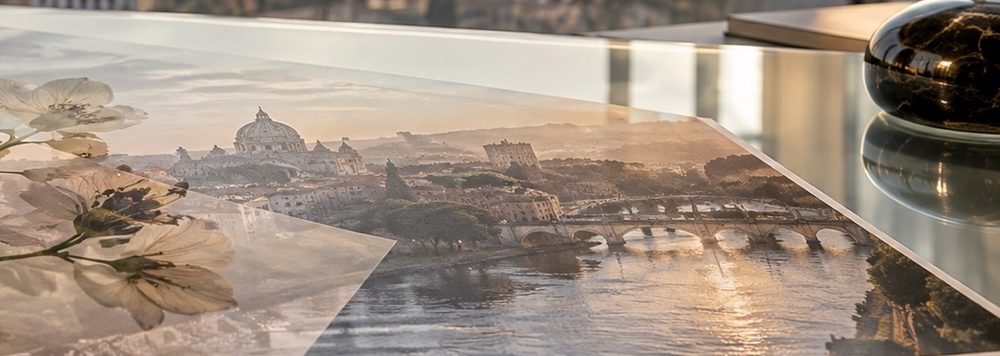
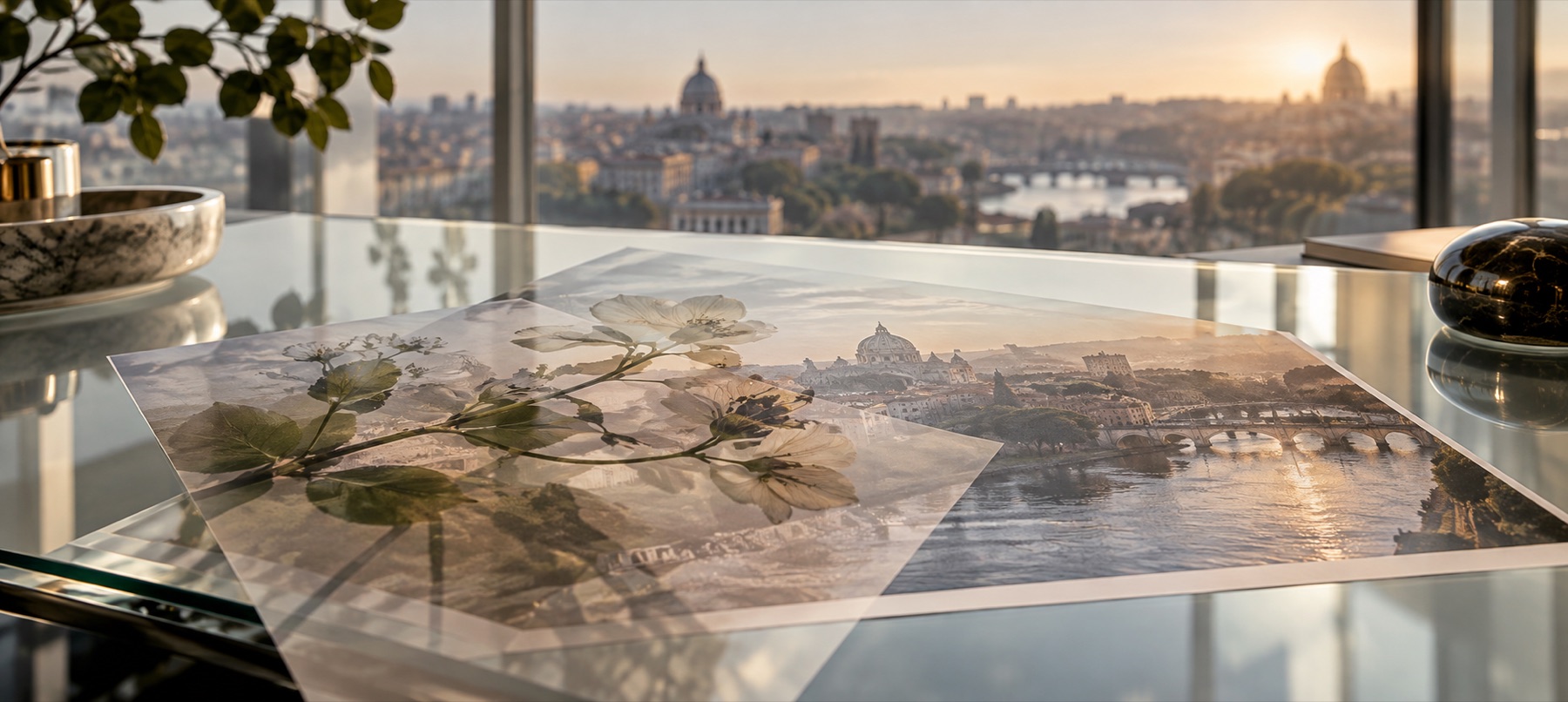
A double exposure is two photographs mixed across the whole frame, so the second one here does not arrive as a small sticker: it is scaled to cover the frame, put on Screen at 70% and given a soft round fade, and the Mask tab is open with the brush ready.
Screen is the classic choice because it only ever lightens: the dark parts of the second photo vanish and its bright parts pour into the first, the way two exposures on one frame of film add their light together.
Step by step
- Open the first photo. Usually the portrait. It is read in this tab.
- Add the second photo. It covers the frame on Screen at 70% with a round fade.
- Pick a starting point. Classic (Screen, round fade), Soft (Soft light 60%) or Luminosity (the second photo's light and dark, the first photo's colour), on the Blend tab.
- Finish by hand. Paint with the mask brush: Erase takes the second photo away from a face, Reveal brings it back.
- Save. At full size; both photos are drawn again from the originals.
What it does, and what it does not
- Opens
- Second photo covers the frame, Screen at 70%, radial fade from 35% to the corners.
- Presets
- Classic, Soft, Luminosity.
- Masks
- Radial or linear fade, rectangle, rounded or ellipse with feather, and the brush.
- Modes
- All sixteen, each previewed on your own two photos.
- Saving
- PNG, JPG or WebP, full size or a smaller long edge.
- Silhouette — one photo shaped by the other's subject — is not in this release; the brush does the same by hand.
- There is no swap button: to exchange the two, open the second photo first.
- Screen over a very bright first photo has little room to lighten; try Soft light or Luminosity there.
Questions about double exposures
- Which mode makes a double exposure?
- Screen, nearly always: it adds the light of one photo to the other and never darkens, which is how two exposures on one frame of film behave. Soft light gives a subtler mix; Luminosity keeps the first photo's colour and takes the second's light and dark.
- How do I keep the face?
- Paint over it with the mask brush on Erase — the second photo goes away there and the face shows through. The round fade already keeps the middle strongest; shrink it on the Mask tab if the face is off centre.
- Does it need the AI model?
- No. Everything on this page — the fade, the modes, the brush — is drawn by code with no download. The optional cut-out on the Mask tab uses a 6.2 MB model only if you press for it.
- Are my photos uploaded?
- No. Both are opened, mixed and saved in this tab.
Related stages
- Overlay several picturesDrop many at once: each becomes its own layer, cascaded so every one shows, ready to align and space.
- Place something on a photoThe stage and a deck of layers: logos, stickers, textures or a second photo, each moved until it looks right.
- What the blend modes doMultiply, screen, overlay and soft light, with the arithmetic said in words.
- Put a person on another photoLifts the subject off their own background on this device, then places them on the scene.