Why this stage opens differently
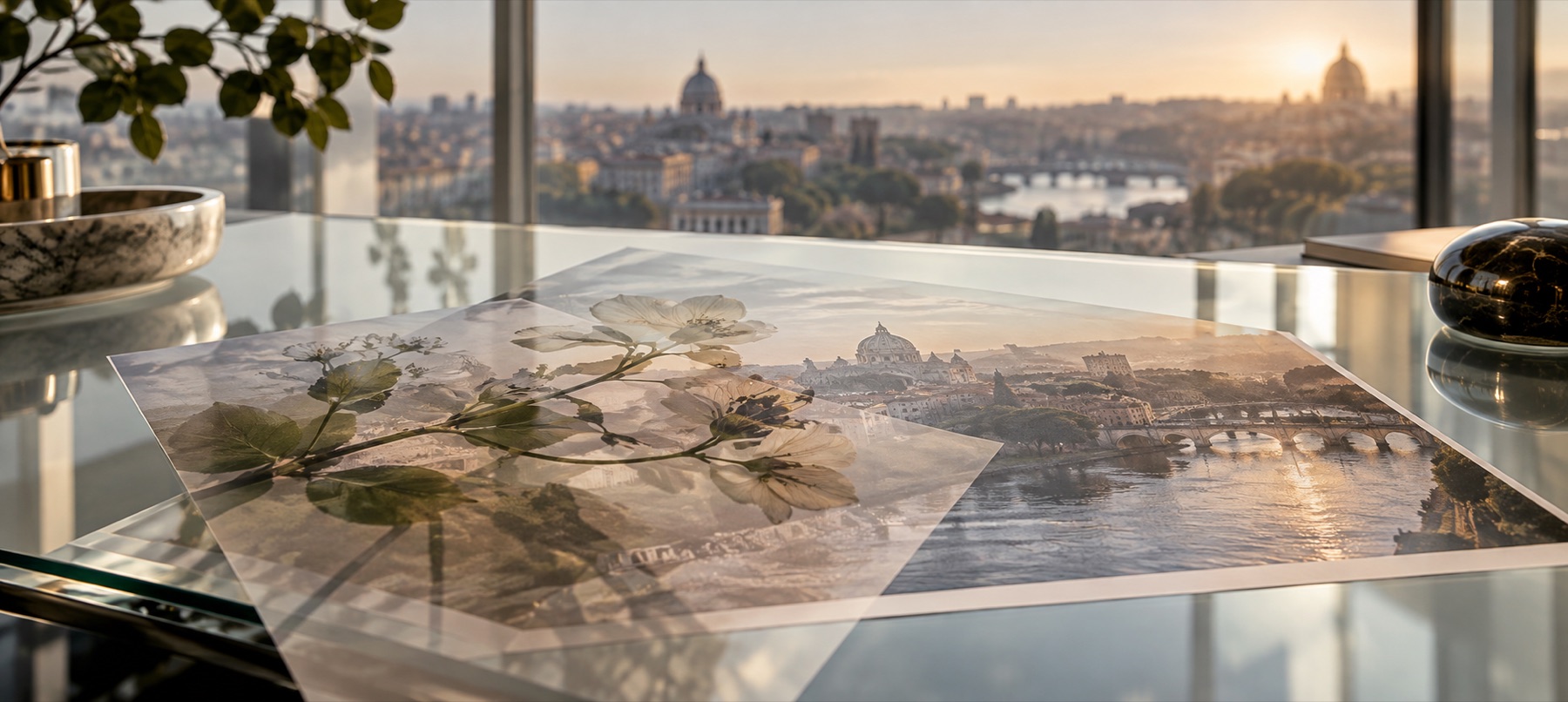
The main stage expects one thing on top. This one expects many: several files dropped together arrive as several layers, stacked in the order they came, each nudged by 3% of the frame so none hides behind the one before.
Each picture opens at 28% of the frame rather than covering it, because when there are many the job is arranging them — and the Align and Distribute controls are on the Place tab that opens first.
Step by step
- Open the photo underneath. The photo the others go on. It stays in this tab.
- Add every picture at once. Choose several in the picker or drop them together. Each becomes a layer at 28% of the frame, cascaded.
- Line them up. Select a layer and use Align for edges and centres; Distribute spaces all visible layers evenly across or down.
- Give each its own look. Mode, strength, mask, outline and shadow are per layer. Lock the ones that are finished so a drag cannot move them.
- Save, or keep the arrangement. Save at full size, or keep the arrangement as a recipe and apply it to another photo.
What it does, and what it does not
- Layers
- Up to twelve. A thirteenth is refused with the reason: each layer is a full-size buffer when the file is drawn.
- Arrange
- Forward and backward, Ctrl+] and Ctrl+[, drag in the deck, duplicate with Ctrl+D, hide, lock.
- Align
- Left, centre, right, top, middle, bottom — to the photo or to the safe margin.
- Distribute
- Even spacing across or down for every visible layer.
- Recipes
- Save in this browser, copy as text, or copy as a link that carries settings only.
- Twelve is the limit on one photo. Save, open the result and keep stacking if you need more.
- Distribute works on every visible layer at once; hide the ones it should leave alone.
- There is no automatic collage grid — placement is yours, by hand or by Align and Distribute.
Questions about stacking pictures
- How many pictures can I stack?
- Twelve on one photo. Each layer becomes a full-size buffer when the file is drawn, and past a dozen a phone runs out of memory. Save, open the result and keep going if you need more.
- How do I line them up?
- Select a layer and use Align on the Place tab to snap it to an edge or the centre of the photo (or of the safe margin). Distribute spaces every visible layer evenly across or down. Snapping also catches the edges and centres of the other layers while you drag.
- Can I save the arrangement?
- Yes. Save this arrangement keeps every layer's place, size, mode and mask in this browser — never the pictures. Copy as text or as a link moves it to another device; apply it to a photo with the same layers added in the same order.
- Are the pictures uploaded?
- No. Every file is opened and drawn in this tab, and the saved picture is written here too.
Related stages
- Place something on a photoThe stage and a deck of layers: logos, stickers, textures or a second photo, each moved until it looks right.
- Place a PNG on a photoA transparent element starts centred at a restrained share of the frame, ready to size and position.
- Double exposureThe second photo fills the frame on Screen at 70% with a round fade, finished by hand with the brush.
- Put one logo on many photosA folder of photos, one mark, one rule stated as shares of each frame, every photo checked, one ZIP.