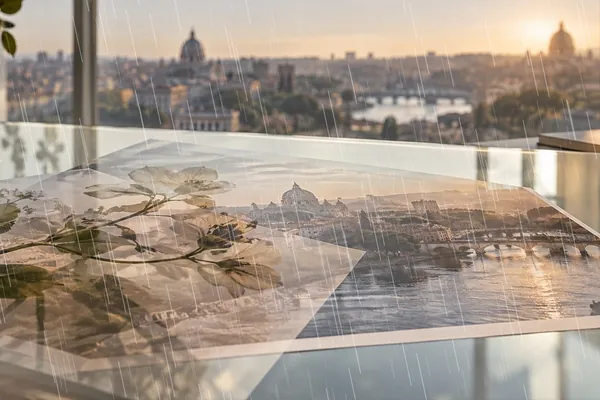
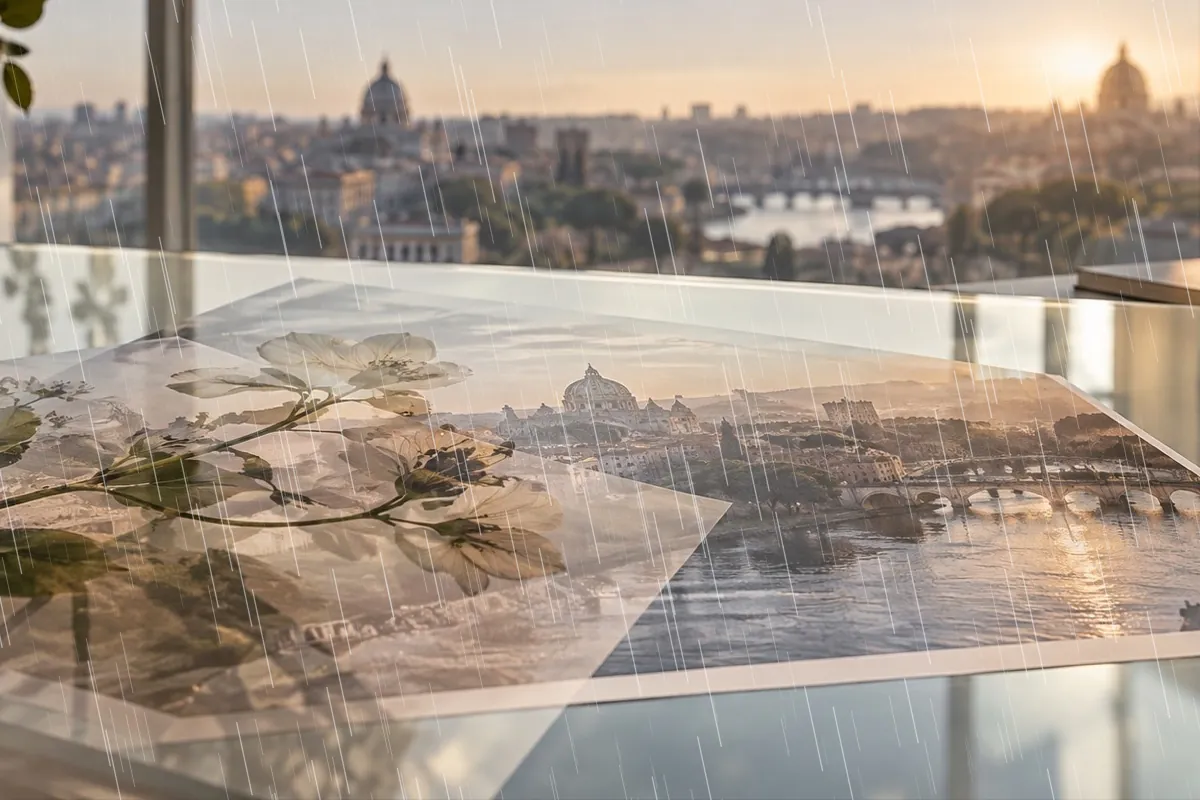
Why this stage opens differently
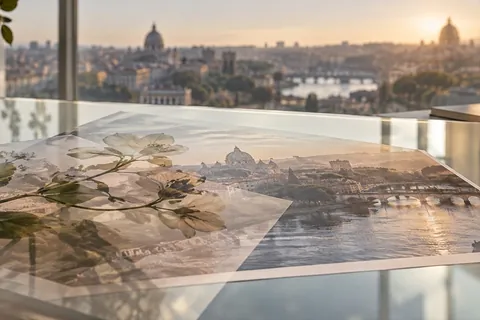
Rain and snow are light in front of the lens, so this stage opens with rain already on Screen over a black tile that disappears: only the bright streaks are added, and the photo underneath keeps its own shadows.
Each pattern is drawn in three depths — small, faint drops far away and long, bright ones up close — and every position comes from a seed, which is why the preview can promise to be the saved file.
Step by step
- Open the photo. It stays in this tab. Rain is already falling on it when it opens.
- Pick the weather. Rain, Downpour, Snow or Blizzard from the shelf.
- Tune it. Density, drop length or flake size, lean and Another pattern on the Blend tab.
- Keep it off faces. A fade or the brush on the Mask tab clears drops from where they look wrong.
- Save. Drawn again at the saved size from the same settings.
What it does, and what it does not
- Patterns
- Rain, Downpour, Snow, Blizzard.
- Controls
- Density, drop length or flake size, lean (−60° to 60°), pattern seed, strength, mode.
- Opens
- Rain on Screen at 85%.
- Pattern
- Seeded: reproducible at any size.
- Saving
- PNG, JPG or WebP.
- Drawn drops do not wet the scene: there are no reflections or puddles, and a sunny photo stays sunny underneath.
- Very dense settings on a very large photo take a moment longer to draw when you save.
- Drops fall straight across everything, including faces; mask them away where they look wrong.
Questions about rain and snow overlays
Which mode does rain open on, and why?
Screen. A raindrop or a snowflake in front of the camera only adds light, and Screen can only lighten — the black around each drop counts as nothing.
Is the rain a downloaded image?
No. Every streak and flake is generated in this tab from a seed. There is no stock texture and nothing to licence.
Will it look the same at full size?
Yes. Positions are shares of the frame and the seed fixes every choice, so the same settings draw the same storm at the saved size instead of stretching the preview.
How do I make it look like it is really raining?
Lower the strength to 60–80%, add a little lean, and pair it with a Colour overlay (Darken for text) at a low strength to dull the sky. Heavy rain also lifts the shadows slightly, which the Downpour pattern does for you.
Can I make the drops fall the other way?
Yes. Lean runs from −60° to 60°: negative leans the fall to the left, positive to the right.
Related stages
- Bokeh overlaySoft discs, heart and star bokeh, sparkle and confetti, generated from a seed.
- Colour overlayA dark wash behind words, a brand tint, a gradient or a fade to white, over all or part of the frame.
- Vintage overlayDust, scratches, film burn, paper, edge fade and sepia, each on the mode that adds only its own age.
- Add a texture overlayOpens the drawn-texture shelf first: light leaks and film grain, with hue, strength and blend beside the stage.